 NexAIX-官方博客
To connect a custom model in Cline, you need to select OpenAI Compatible as the API Provider in the settings, then fill in three items: the Base URL with /v1, the API Key provided by the service, and the exact Model ID. The two most common mistakes are selecting the native "OpenAI" option and including /chat/completions in the Base URL.
The following explains each step in the actual order of operation, and why each field should be filled in that way.
Step 1: Open Settings and Select the Correct Provider
Open the Cline panel in the VS Code sidebar. Click the gear icon (⚙️) in the top right corner, or click the API Provider dropdown below the chat input box to enter the settings page.
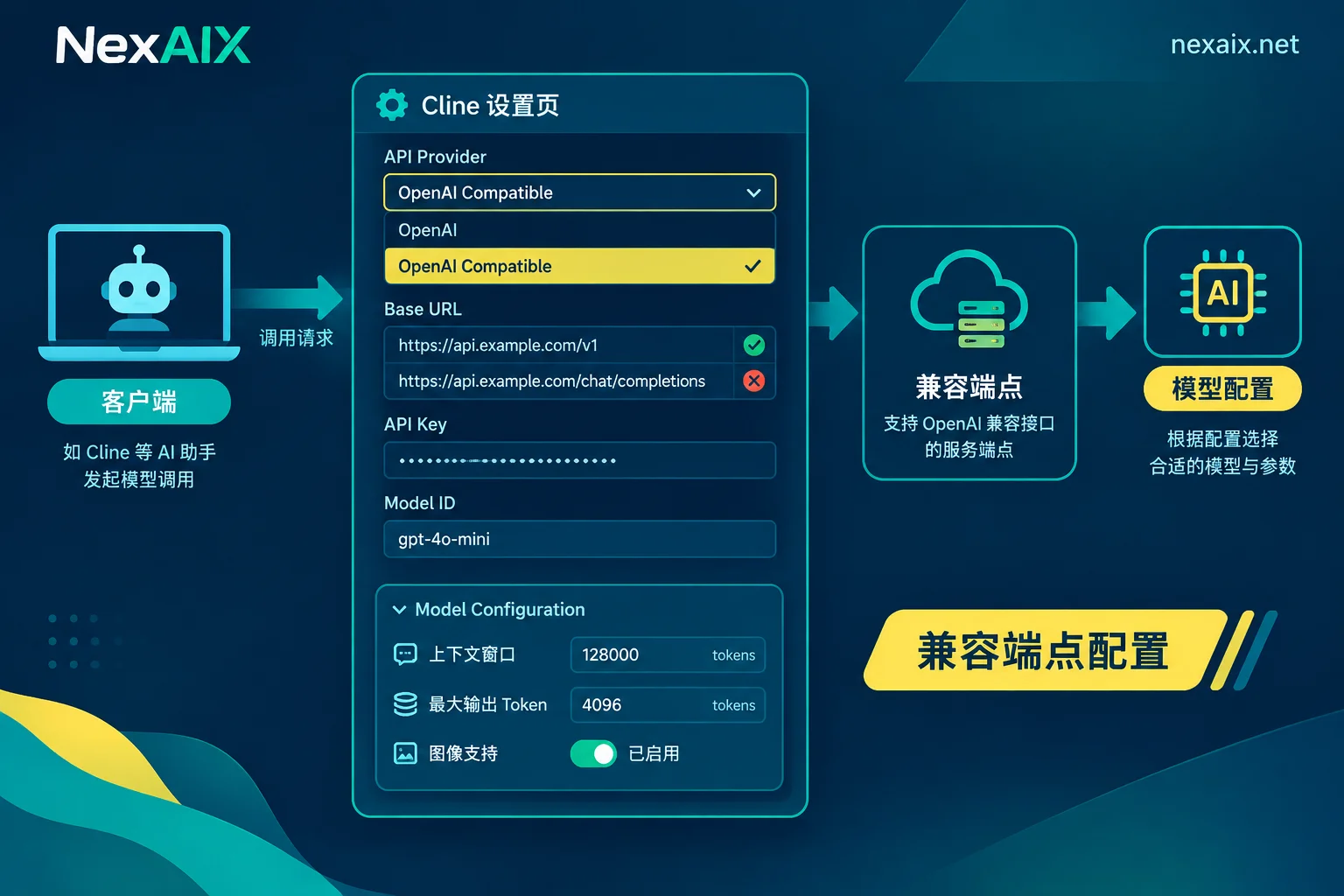
From the API Provider dropdown, select OpenAI Compatible.
Do not select the seemingly more direct "OpenAI" option. The native OpenAI option typically uses the official endpoint and does not allow a third-party Base URL. If you are connecting to a relay service, a self-hosted inference service, or any other service that is compatible with the OpenAI protocol, you should use OpenAI Compatible.
Step 2: Fill in the Base URL
The rules for the Base URL are as follows:
- Usually, you need to keep
/v1, for examplehttps://api.nexaix.net/v1. - Do not include
/chat/completions. Cline will automatically append the subsequent path when making requests. If you provide the full request URL, the actual request path will be duplicated, typically resulting in a 404.
Compare:
正确:https://api.nexaix.net/v1
错误:https://api.nexaix.net/v1/chat/completions
错误:https://api.nexaix.net        (服务商要求 /v1 时,缺少这一段也可能 404)
Different providers may have different path prefixes; before filling it in, refer to the "base_url" in their documentation. The easiest way to verify: in the Python or Node openai SDK, this address should be usable directly as base_url. The value you enter in Cline is the same. If you are not yet familiar with this concept, you can first read How to Use OpenAI-Compatible APIs.
If you use NexAIX, the endpoint is https://api.nexaix.net/v1. It uses the OpenAI-compatible protocol, so in Cline you only need to change this one address; fill in the other fields as usual.
Step 3: Fill in the API Key and Model ID
API Key: Enter the key issued by the provider. Cline will store it locally. It is recommended to create a separate key for Cline and not share it with production services. This way usage can be tracked separately; if the key is leaked, you only need to revoke that one. For more on isolating keys, see How to Obtain, Store, and Separate AI API Keys.
Model ID: Enter the exact identifier from the provider's model list, not the display name, and do not guess. Inconsistent casing, hyphens, or version suffixes can cause request failures. The most reliable method is to copy it from the provider's model page.
When selecting a model on NexAIX, you can view each model's ID and provisioning method in the Model List. Provisioning methods fall into two categories: open-weight models deployed on proprietary compute, and closed-source models provided through official vendor-authorized channels. Each model page also lists specifications such as context window and output limit, which you will need in the next step.
Step 4: Set Advanced Parameters According to Model Specs
For custom models not in Cline's preset list, Cline cannot automatically detect their capabilities, so you need to manually fill in the model configuration:
- Context Window size: This is the most important item. Cline puts file contents, terminal output, and multi-turn conversations into the context, consuming it faster than regular chat. If set too small, Cline may compress or truncate the context prematurely; if set too large and it exceeds the model's actual limit, the request will be rejected by the server. Fill in the actual value from the model page.
- Max Output Tokens: Determines the maximum length of a single reply. When generating large code blocks or long diffs, setting it too small can cause the output to be truncated mid-way.
- Image Support: Enable only if the model actually supports image input. Otherwise, pasting a screenshot into Cline may cause the request to error.
- Tool/Function Calling Capability: Check according to the model's actual capabilities.
- Input/Output Price: This is only used by Cline to locally estimate task costs and does not affect actual billing. You can fill it in according to the provider's pricing, or leave it blank. Actual costs are based on the provider's billing.
The relationship between context window and output limit, and how to avoid truncation, can be found in Model Context Window Comparison.
Step 5: Verify the Configuration with a Small Task
After saving the settings, do not immediately let Cline modify your project. Instead, send a simple instruction, such as "List the files in the current directory and explain their purpose," and confirm the following:
- The request returns successfully without errors;
- The provider's backend shows a call record for this key, and the model name matches what you entered;
- Cline's token statistics roughly match the provider's backend.
Point 2 is worth a second look. It confirms that the request was indeed sent to the endpoint you configured and that the model you specified was used.
How to Troubleshoot Common Errors
| Symptom | First Check |
|---|---|
| 404 | Whether the Base URL includes an extra /chat/completions, or is missing the provider-required /v1 |
| 401 / 403 | Whether the key was copied completely, has leading/trailing spaces, has been revoked, or lacks permission for the model |
| Model not found / 400 | Whether the Model ID exactly matches the provider's list |
| Long task errors mid-way or truncated replies | Whether the context window or max output tokens exceed the model's actual limit, or are set too small |
| 429 | Rate limiting or quota limit reached. Check the provider's published rate limits, reduce concurrency, or retry later |
For the meaning of each status code and retry strategies, see How to Interpret AI API Error Codes.
Summary
The configuration order is: Select OpenAI Compatible → Fill in the Base URL with /v1 and without /chat/completions → Fill in the key → Copy the Model ID from the model page → Fill in the context window and output limit according to model specs → Verify with a small task.
If you don't yet have a usable key and endpoint, you can first choose a model from the NexAIX Model List, then register via the "Get API Key" link in the site navigation. After registration, you'll receive free testing credits that you can use to run through the verification steps above.



Comments(0)