 NexAIX-官方博客
To add a custom LLM in Cherry Studio, you first create a custom provider, then attach models under it. Here's how: go to "Settings → Model Services", click "Add" to create a provider, select type OpenAI, and enter your API Key and API URL (Base URL). Then use "Check" to test connectivity, turn on the enable switch, and fetch the model list or manually enter model IDs. Finally, switch to the new model at the top of the chat window.
As long as the provider offers an OpenAI-compatible endpoint, you can connect it this way. Below, we'll walk through each step and point out a few common pitfalls.
Have Three Things Ready Before You Start
- API URL (Base URL): the provider's OpenAI-compatible endpoint, usually in the form
https://域名/v1. - API Key: the key issued by the provider.
- Model ID: the exact model identifier recognized by the server. This is not the display name on the website; case and hyphens must match exactly.
The third item is often overlooked. If the provider doesn't support automatically fetching the model list, you must manually enter the model ID—one wrong character and you'll get a 404.
Step 1: Create a Custom Provider
Open Cherry Studio, click the gear icon to enter "Settings", and find "Model Services". In some versions, it's called "Model Providers". Click "+ Add" at the bottom of the provider list, and a configuration window will pop up:
- Provider Name: any name you can recognize, e.g., just use the provider's name.
- Provider Type: select OpenAI, which means OpenAI-compatible protocol. If the provider says it's OpenAI-compatible, choose this.
After saving, the new provider will appear in the left list.
Step 2: Enter API Key and API URL
Click the provider you just created and fill in two fields on the right:
- API Key: paste the Key from the provider. Make sure there are no leading or trailing spaces or newlines.
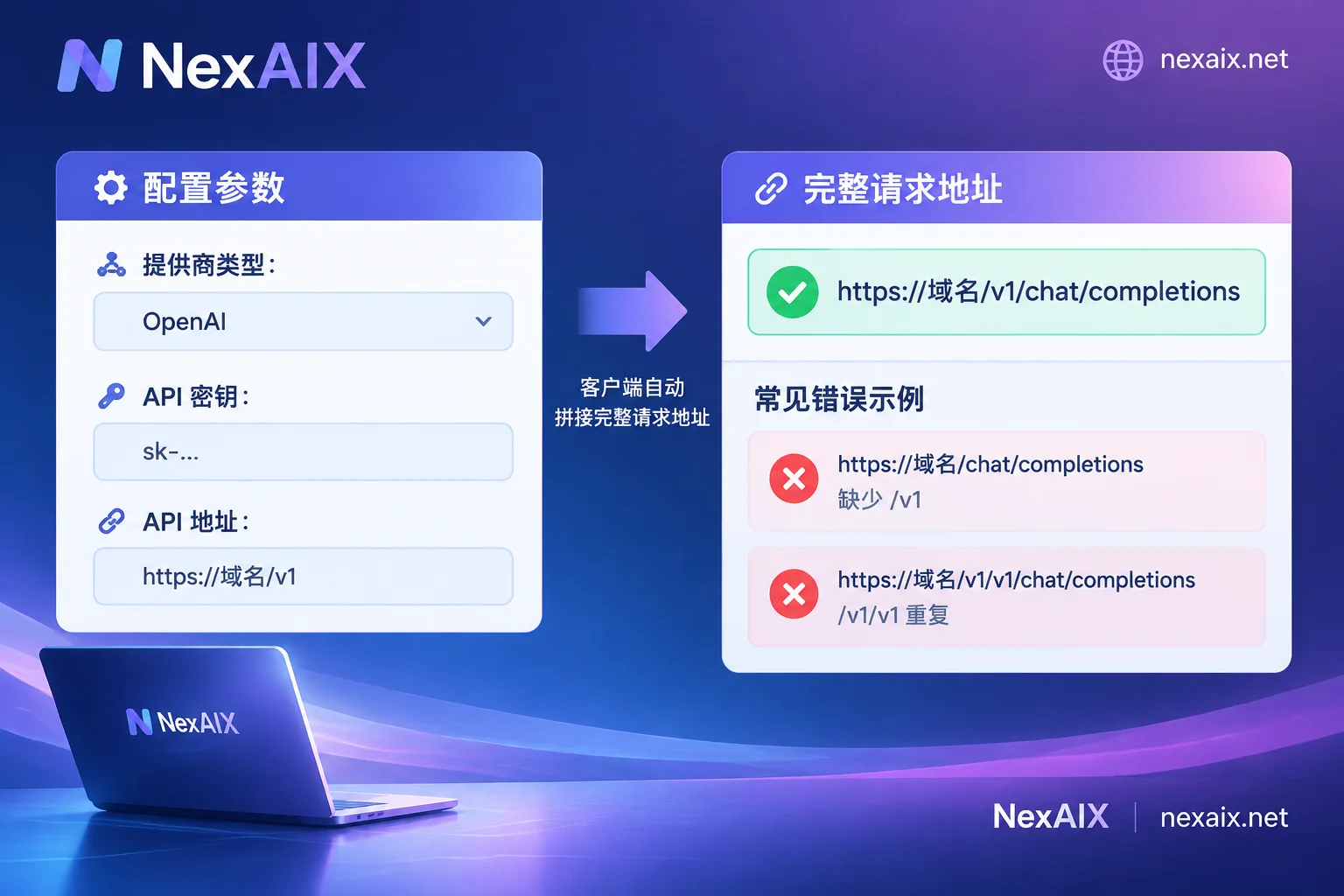
- API URL: enter the provider's OpenAI-compatible endpoint.
Cherry Studio automatically appends paths like /chat/completions after the API URL, so you only need to enter the root of the endpoint. Don't add extra slashes or other symbols at the end.
Whether to include /v1 is the most error-prone part of this step. Different versions of Cherry Studio have adjusted how they handle trailing /v1, so the most reliable approach is to follow the placeholder example in your current version's input field. If a preview of the actual request URL is shown below the input, confirm it ends up as .../v1/chat/completions: it must not lack /v1, nor have duplicates like /v1/v1.
Take NexAIX as an example. It provides an OpenAI-compatible endpoint. Enter https://api.nexaix.net/v1 as the API URL, select OpenAI as provider type, and leave the rest as default. You can apply for a key via "Get API Key" in the official website navigation; registration comes with test credits. NexAIX isolates by key, and each key has its own quota, permissions, and usage billing. So it's better to create a separate key for desktop clients like Cherry Studio—this way, usage tracking or disabling won't affect other applications.
Step 3: Check Connectivity and Turn On the Enable Switch
Click the "Check" button next to the API Key. If it says connection successful, the key is valid and the network is fine. If it fails, don't rush to add models—see the troubleshooting section below.
Then confirm that the enable switch at the top right of the provider is turned on, and a green dot appears next to the provider name in the list. If the switch is off, you won't find its models in chats.
Step 4: Add Models
In the provider's model management area, there are two ways to add models:
- Auto-fetch: click "Fetch Model List". Cherry Studio will request available models from the endpoint, and you select the ones you want from the list.
- Manual add: if the provider doesn't support fetching the list via API, or the model you want isn't in the returned results, click "+" and enter the exact model ID.
When adding manually, the model ID should be based on the provider's official model list. For NexAIX, you can find the exact model ID in the model list. Each model page also indicates its supply method: open-weight models are deployed on proprietary compute, while closed-source models go through the vendor's official licensing channels. You can refer to this when choosing models.
Step 5: Check Capability Tags According to the Model's Actual Abilities
In the model list, click the gear icon to the right of a model to modify its display name and description, and to check capability tags such as Vision (image upload), Reasoning (thinking mode), and Function Calling (tool calling).
These tags determine whether Cherry Studio shows corresponding controls in the UI, such as the image upload button. They do not add capabilities to the model. Tags should be checked based on the model's true abilities: if you check Vision for a text-only model, uploading an image will likely cause an error; if you don't check what should be checked, the corresponding features won't appear in the UI. Check the provider's model documentation for supported capabilities.
Step 6: Switch to the New Model in Chat
After creating a new chat, the default is often still a preset model. You need to manually select the custom model you just added from the model dropdown at the top of the chat window. Many people configure everything correctly but miss this step and think the connection failed.
Configured but Not Working: Troubleshoot by Symptom
Messages won't send, or replies seem to come from another model
First check which model is currently selected at the top of the chat, then confirm the provider's enable switch is on.
401 error
This is an authentication issue. Re-copy the API Key, check for extra spaces or if you copied a key from a different provider. Then check in the provider's backend whether the key is valid and whether the quota is exhausted.
404 error
Check two things first:
- Whether the API URL is missing
/v1, or whether/v1is duplicated due to client-side auto-concatenation. Compare with the placeholder example or address preview and adjust the trailing/v1. - Whether the manually entered model ID matches the server identifier exactly, including case, version number, and hyphens.
"Check" passes, but a specific model errors in chat
Connectivity check only confirms the URL and key are fine; it doesn't mean every model ID is correct. Just verify the ID of the erroring model one by one.
If you want a more systematic understanding of what these status codes mean and which are worth retrying, see How to Read AI API Error Codes. When the same endpoint is connected to other clients, /v1 handling logic varies. For Dify, see Dify Adding OpenAI-Compatible Models; for Cline, see Cline Configuring Custom Model API.
Summary
Adding a custom LLM in Cherry Studio essentially comes down to three configurations: an OpenAI-type provider, the correct API URL plus key, and the exact model ID. The first two can be verified with the "Check" button; the third can only be verified against the provider's model list. After configuring, remember to manually switch models in chat. When you encounter a 404, first check /v1 and the model ID—most issues are there.



Comments(0)