 NexAIX-官方博客
The answer: In the One API admin panel, go to "Channels" → "Add New Channel", select "OpenAI" as the channel type, fill the "Proxy" field with the endpoint of the compatible service, and enter the key issued by that service in the "Key" field. Manually enter the exact model names accepted by the upstream and uncheck any unrelated default models. After saving, click "Test" in the channel list; if you see a returned latency, the connection is working.
Whether the upstream is a third-party relay, an open-source model inference node, or a self-hosted gateway, as long as it implements the OpenAI protocol, you follow this path. No secondary development or plugins are needed. Below, I'll explain each form field in order, then cover troubleshooting test errors.
Prepare three things before you start
- Upstream Base URL: The public endpoint address of the compatible service.
- Upstream API Key: Issued by the compatible service, not One API's own token.
- Exact upstream model name: Case, hyphens, and version suffixes must match the upstream exactly—best to copy directly from the provider's model list.
Take NexAIX as an example. Its OpenAI-compatible endpoint is https://api.nexaix.net/v1. Keys are created in the "Get API Key" section of the official site navigation. Model identifiers can be found in the model list; each model page indicates the provisioning method: open-weight models are deployed on proprietary compute, while closed-source models go through the vendor's official licensed channels. Copy model names directly from the model page—don't type them from memory.
Adding a channel: field by field
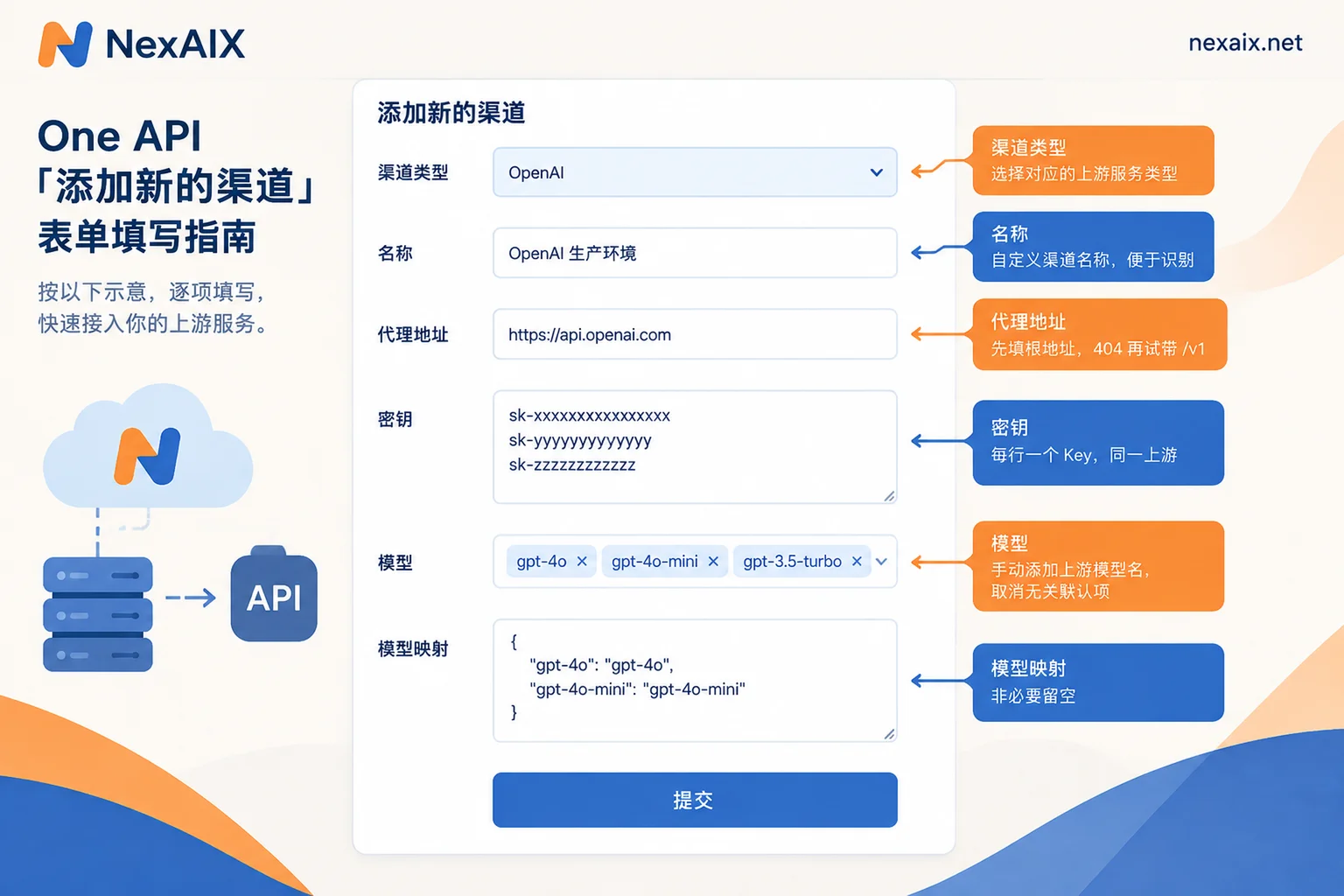
1. Channel Type: Select "OpenAI"
Here "OpenAI" refers to the protocol, not the vendor. When selected, One API forwards requests exactly in OpenAI's API format—use this type for any compatible endpoint.
2. Name
Choose your own name that clearly indicates which upstream and its purpose, e.g., "xx-compatible-endpoint-production", so you can distinguish it in the channel list later.
3. Proxy / Base URL: The most error-prone field
By default, One API sends OpenAI-type requests to https://api.openai.com. If you fill the proxy field, requests will be redirected to the address you provide.
The tricky part is whether to include /v1 at the end. One API and its various forks (e.g., New API) differ in path concatenation: some versions automatically append /v1/chat/completions, while others allow you to include /v1 yourself. Recommended approach:
- First try the root address without
/v1, such ashttps://api.nexaix.net, save, and test; - If the test returns 404, change to the full address with
/v1and retest; - Rely on actual test results—don't blindly copy tutorials from other versions.
Do not add extra trailing slashes or include /chat/completions.
4. Key
Paste the upstream-issued key. A channel can hold multiple keys, one per line; One API will rotate among them to distribute quota and concurrency. Note that these keys must belong to the same upstream and same Base URL. Mixing keys from different providers in one channel will cause 401 when the wrong key is rotated.
If the upstream isolates quota by key (e.g., NexAIX gives each key independent quota, permissions, and usage billing), then placing multiple keys in a channel will also track quota and billing per key.
5. Models
After selecting OpenAI type, the model field pre-selects a batch of official model names. When connecting to a third-party compatible service, do two things:
- Manually enter the upstream model identifier and press Enter to add it. It's normal not to find open-source or custom model names in the dropdown;
- Uncheck default models that the upstream doesn't actually provide. Otherwise, when clients request those model names, One API might route the request to this channel and get rejected by the upstream.
6. Model Mapping: Leave empty unless necessary
Model mapping is a JSON snippet that rewrites the model name requested by the client to the upstream's model name. For example, if your application hardcodes an old model name and you don't want to change the code, you can use it.
One API's official documentation explicitly recommends not enabling it unless necessary. When enabled, the gateway reconstructs the request body instead of passing it through as-is, so some extension fields not officially supported by One API may be lost. If certain upstream-specific parameters suddenly stop working, first check if mapping is enabled. If you can change the model name directly on the client side, avoid mapping.
7. Submit
Leave other options (group, etc.) at default for now; adjust after confirming it works.
Click "Test" and diagnose by error
After saving, return to the channel list and click the "Test" button for this channel.
- Returned latency (ms): Connectivity, authentication, and path are all fine.
- 404: Mostly due to extra or missing
/v1at the end of the proxy URL—try the other format and retest. If the path is confirmed correct, check whether the test model name exists upstream. - 401: Key is wrong, expired, or lacks permission. Check for spaces or newlines when copying, and whether keys from other providers got mixed into a multi-key channel.
- Connection refused: Network unreachable or blocked by firewall. Most common when connecting to a local or intranet inference service. If One API runs in Docker, the proxy address
localhost/127.0.0.1refers to the container itself, not the host—you need to change it to an address accessible from the host or the inference service, and ensure the inference service listens on more than just loopback and that the port is open.
For other status codes and retry strategies, see How to read AI API error codes.
After the test passes, verify from the business side
The channel test only confirms that the One API-to-upstream segment is working. Business calls use a different segment:
- The client's
base_urlpoints to your deployed One API address (usually with/v1); api_keyuses a token created in One API, not the upstream key;modelis the model name you entered in the channel—if mapping is enabled, use the pre-mapping name.
Confirm a minimal chat request returns successfully, then integrate into production. For how to change base_url on the client side, see How to use the OpenAI-compatible API. If the downstream is a platform like Dify, its handling of /v1 differs; refer to Adding OpenAI-compatible models in Dify.
A few easily overlooked boundaries
- One upstream per channel. Don't mix Base URLs and keys from different providers in the same channel. Create separate channels per upstream so you can pinpoint the source when issues arise.
- Model names are subject to upstream. Upstream model lists change; when a model is retired or renamed, channel tests will fail. Periodically update the model list in the channel against the provider's model page.
- Version differences: rely on actual tests. This article is based on the mainline One API form fields. Forks may have different field names and path concatenation rules—when unsure, use the "Test" button result to decide.


Comments(0)